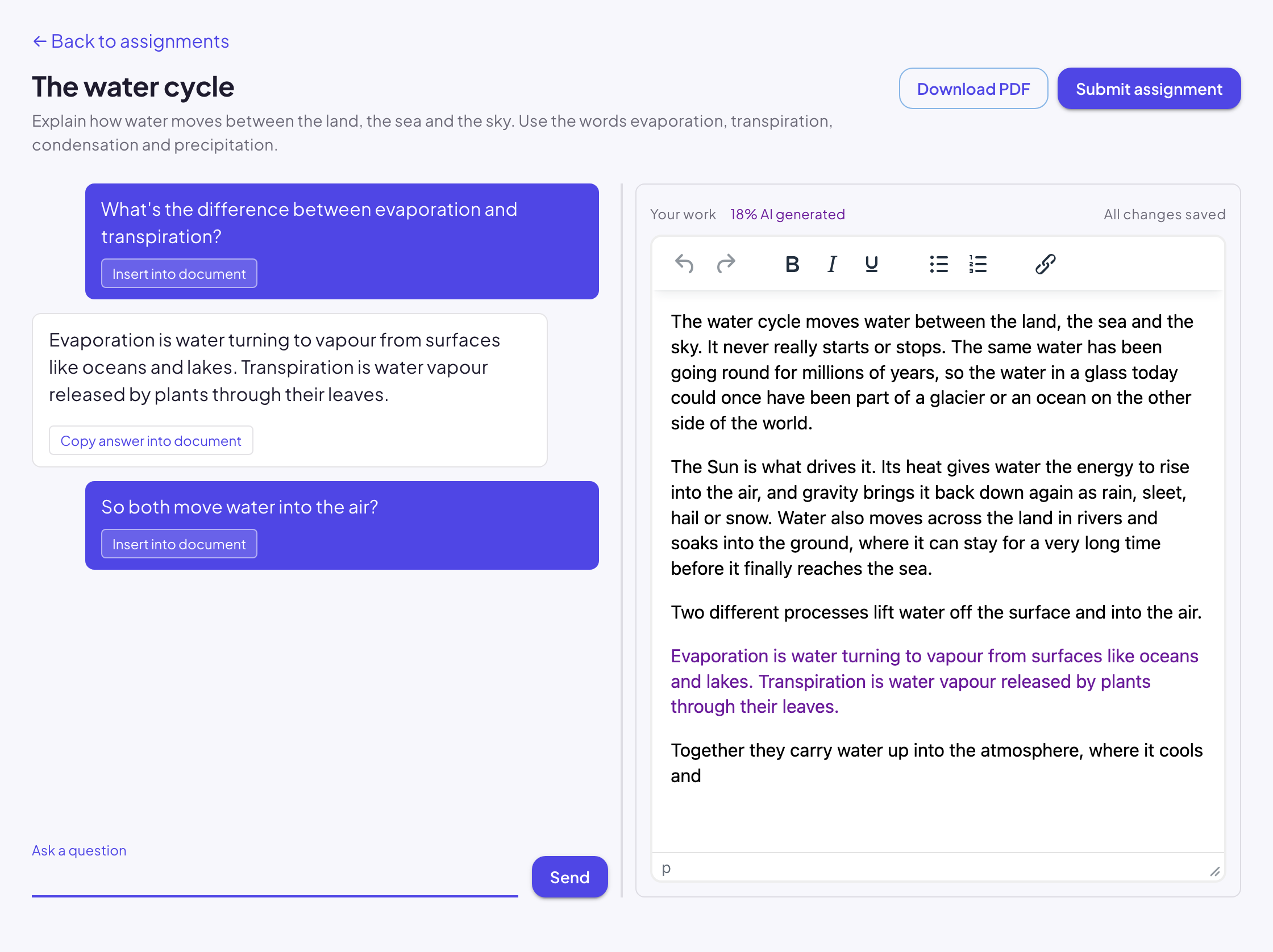
The chat sits beside the document
Learners work with the chat on one side and their document on the other. They can ask questions as they go, and every conversation is saved against the assignment.
vaultED puts an AI assistant beside every assignment. Anything a learner takes from the assistant stays marked in their document. When the work is handed in, teachers can see how much of it the AI wrote, down to a percentage.
Learners use AI whether it's allowed or not. vaultED puts the assistant inside the assignment, where teachers can see it, and keeps the learner's writing apart from the assistant's.
Learners work with the chat on one side and their document on the other. They can ask questions as they go, and every conversation is saved against the assignment.
Answers copied from the assistant are shown in their own colour, including in the PDF a teacher downloads. If a learner edits a copied passage, their changes are recorded as their own writing. Copy and paste into the document is turned off.
The document counts the learner's words and the assistant's words, and shows what share came from the AI. The figure is saved with each submission, so it doesn't change after hand-in.
Learners, teachers and administrators each get the tools for their role. Everyone signs in with their email and a one-time code, so nobody needs a password.
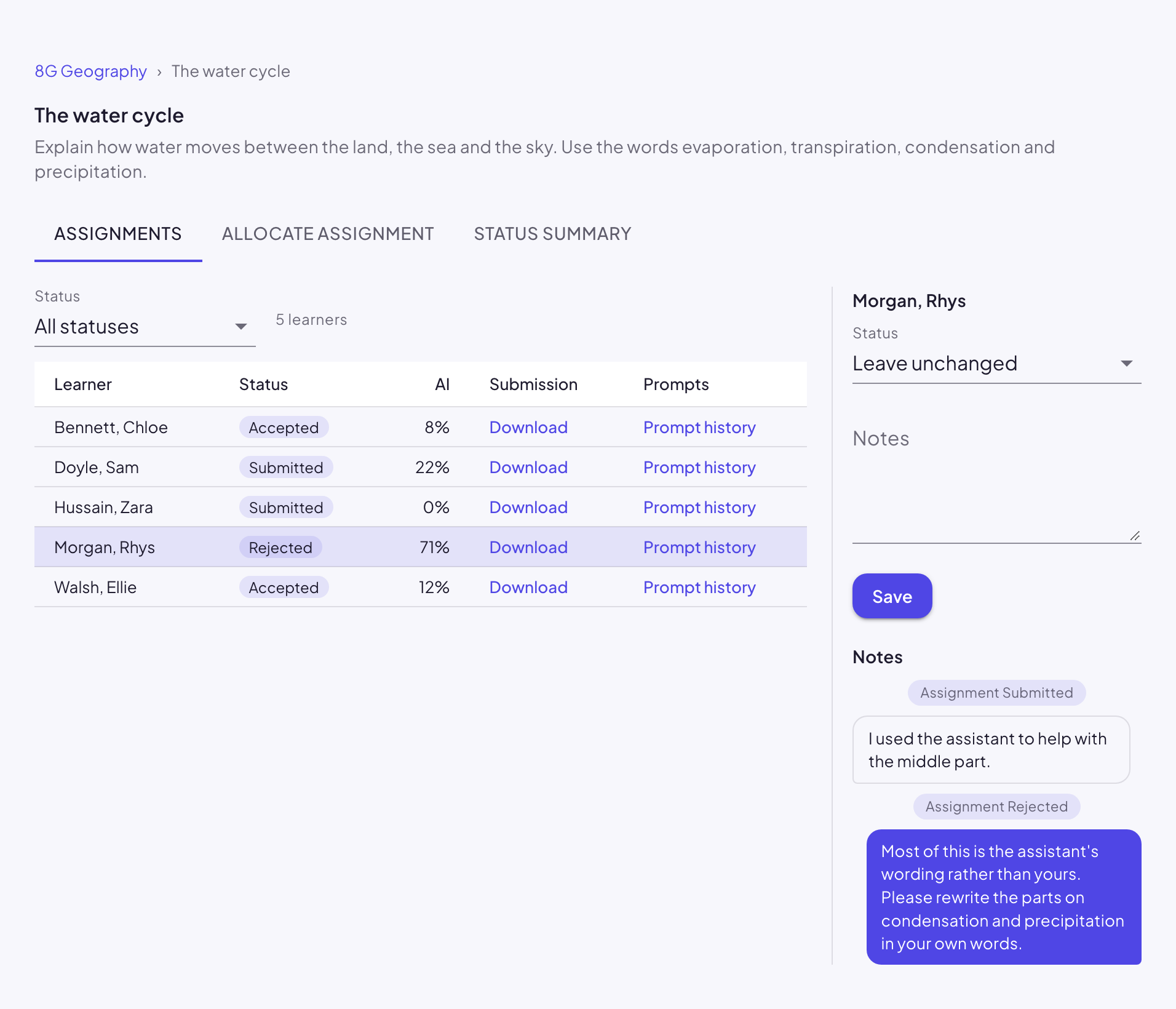
Next to each learner's submission, teachers see its status and the share of the text the AI wrote. They can open the prompt history to see what the learner asked, not only the answer they ended up with.
Feedback goes back to the learner as a conversation. Reject a piece with a note and the learner can reply to it from their own screen.